cse15l-lab-reports
Hello, Incoming CSE 15L Students and Myself!
I am going to do my best to show you how to setup Remote Access
-
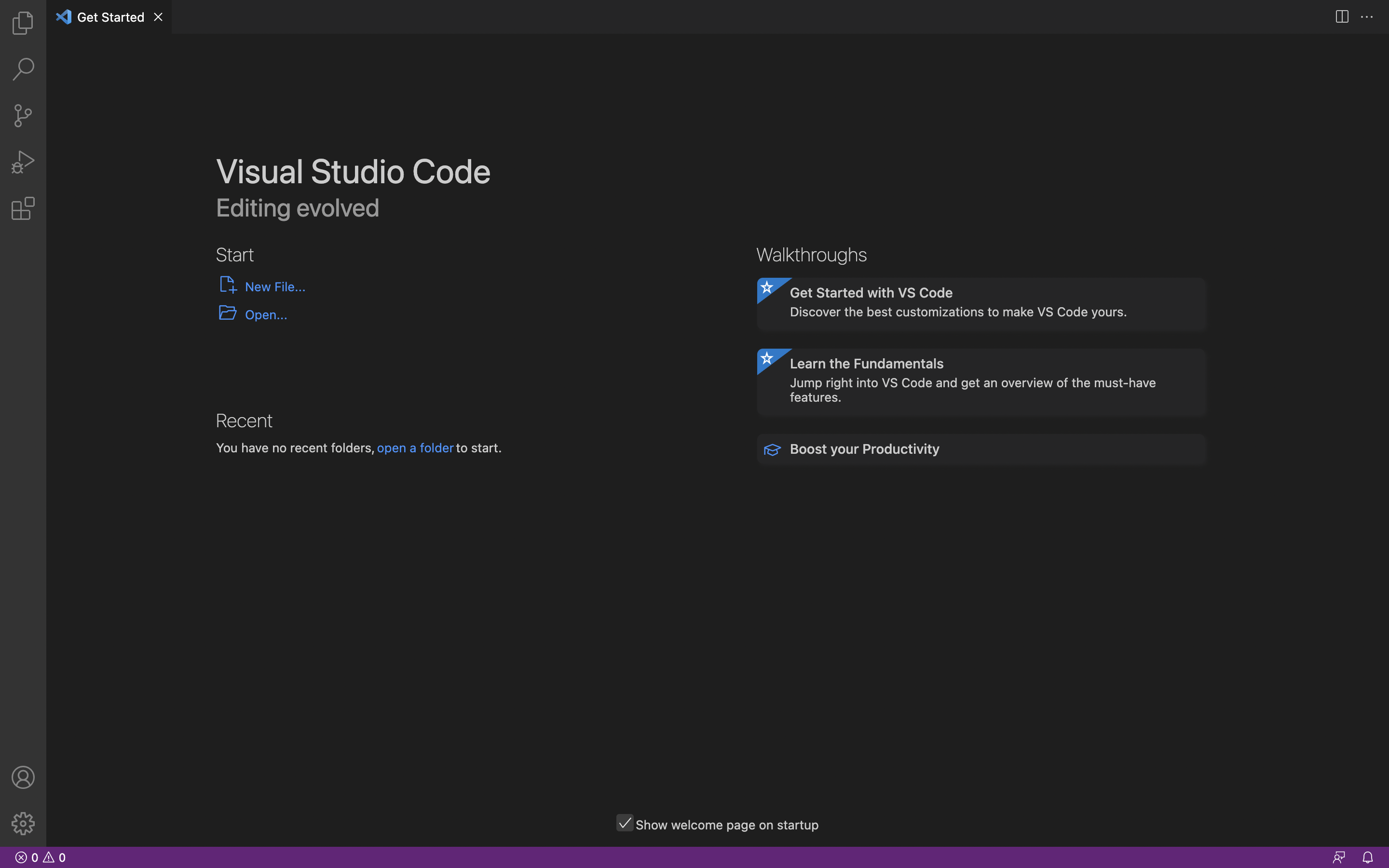
First, you are going to want to install Visual Studio Code by going here, and clicking download for your Operating System. After opeing VSCode you should see something like this:
-
After installing, we are going to try to remotely connect to a server at UCSD. If you are on Windows you will need to install the program OpenSSH here. This will allow you to connect to other systems that use this type of account.
Now you can either use the terminal built in to your computer or you can use Visual Studio Code. I personally opted to use the built in terminal. If you are using VSCode press Ctrl or Command +. Now input the command
ssh cs15lfa22zz@ieng6.ucsd.edubut replace thezzwith the letters in your course-specific account. Input your password and connect to the server! It should look something like this: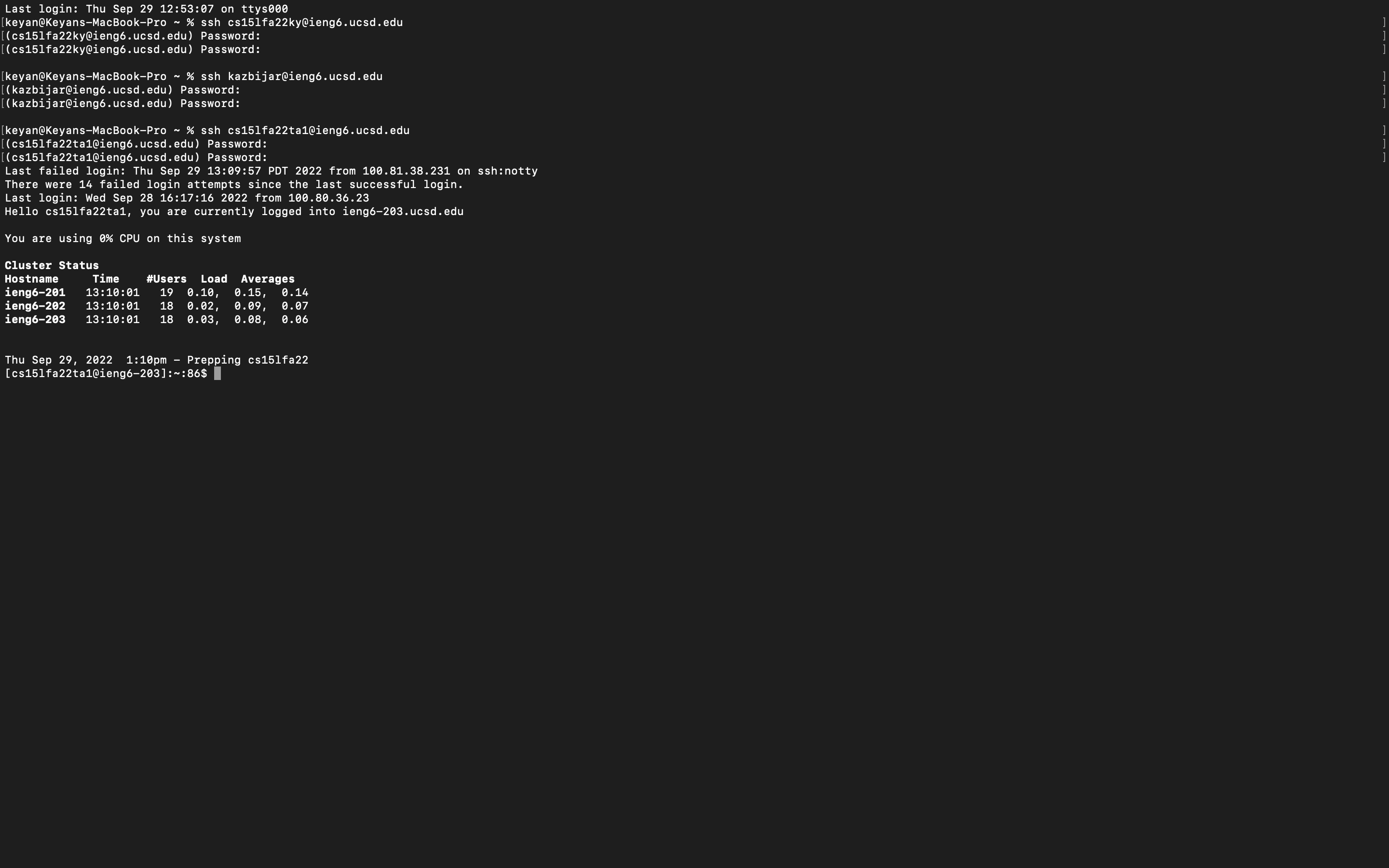
-
Now try using some commands! Some of the basic commands are
cd,ls,pwd,mkdir, andcp. You will be using these commands alot, you can usecdto change your working directory and access different files.lswill list the files in your current directory.pwdwill write the full path of the current directory you are in.mkdirwill make a new empty directory whose name is defined by the path. Andcpis used to copy files from one directory to another. After using some commands you can log out of the remote server by using Ctrl-D or use the commandexit. Mine looked like this: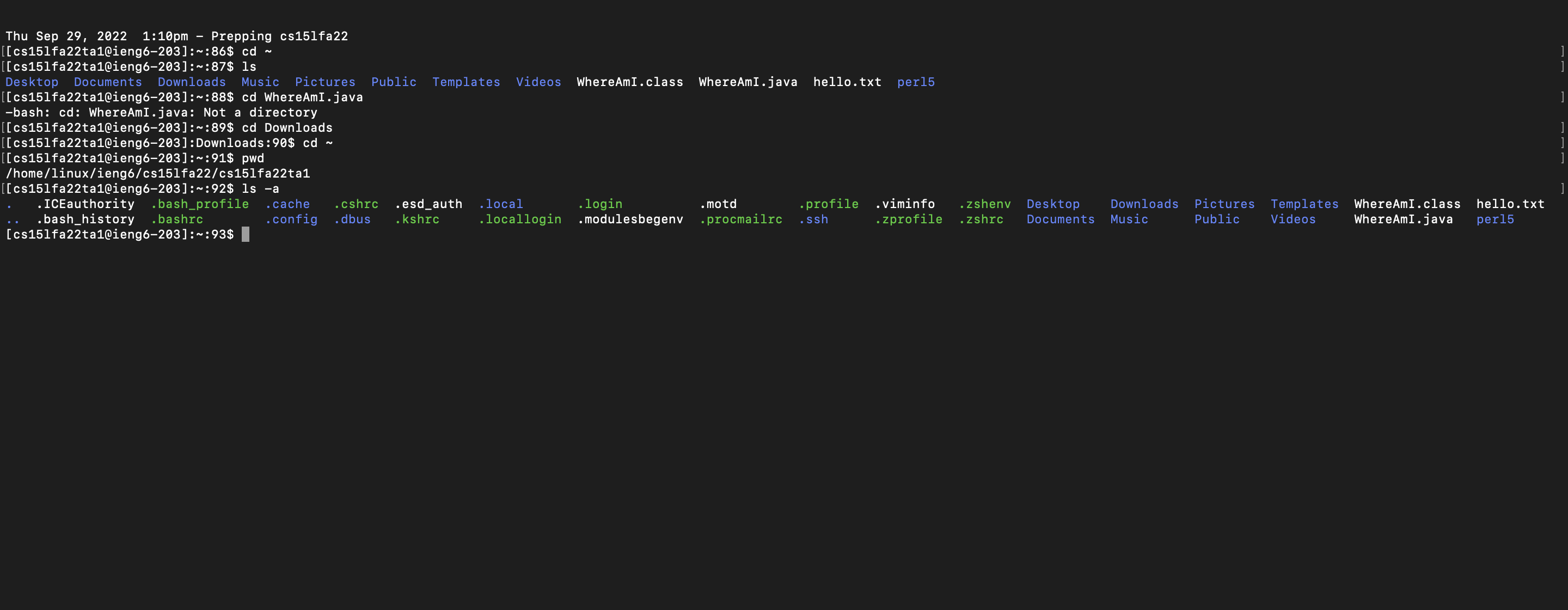
-
Now we are going totry to copy files from our local system to the server. The command to do this is
scp, and this command is onyl run from the local system not the server. We are going to create a file calledWhereAmI.javaon our local system and in that file include the code: … class WhereAmI { public static void main(String[] args) { System.out.println(System.getProperty(“os.name”)); System.out.println(System.getProperty(“user.name”)); System.out.println(System.getProperty(“user.home”)); System.out.println(System.getProperty(“user.dir”)); } } …If you have Java installed on your computer then compile and run
WhereAmI.javausingjavacandjavain your terminal like this: … javac WhereAmI.java java WhereAmI …Now that you have a file lets try copying it to the server. The format for
scpisscp <filename1> <filename2> <username@servername>:<path>. In your terminal make sure you are in the directory where your java file is located and type in:scp WhereAmI.java cs15lfa22zz@ieng6.ucsd.edu:~/Enter the same password you used to login tossh.Then log in to the server using
sshand use the commandlsto see the file in your home directory. Now you can use thejavacandjavacommands because java is installed on the server. Here is me copyingWhereAmI.javaand running it on the server: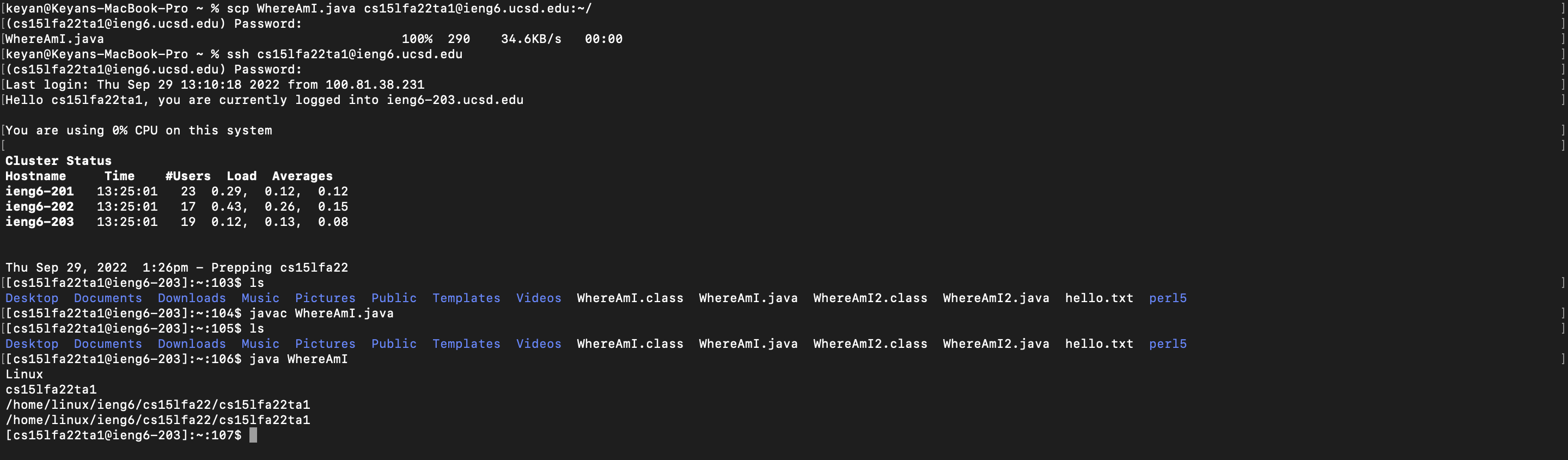
-
Now that we know how to log in, copy files, and run commands, it can get annoying to type in your password everytime you want to log in or copy a file. To fix this we can use
sshkeys. By usingssh-keygenwe can create two keys, one stays on the server and the other stays on your local system.sshwill now use these keys instead of having to type in a password everytime.To make these keys you want to run
ssh-keygenin your local system’s terminal. Follow the instructions that the terminal shows.Now to copy the one of the keys to the server run
ssh cs15lfa22zz@ieng6.ucsd.eduon your local system. Enter your password, and on the server entermkdir .sshand logout of the server.Now on your local system enter:
scp /Users/keyan/.ssh/id_rsa.pub cs15lfa22zz@ieng6.ucsd.edu:~/.ssh/authorized_keyswith your account and username.Now you should be able to
sshandscpwithout having to type in your password which can save a lot of time especially if you are switching back and forth multiple times.Here is me setting up my
sshkeys:
-
To help optimize remote running, I would suggest copying your
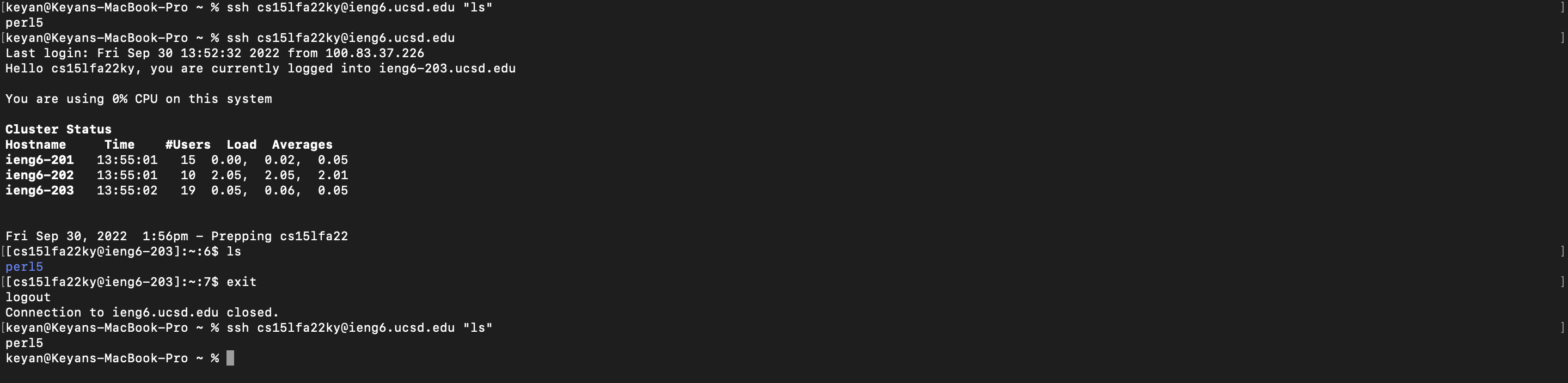
cs15lfa22zz@ineg6.ucsd.eduwhen you are working on the server so you will not have to enter that everytime and instead just useCommand-V. Also, if you want to confirm that you copied a file to the remote server without having to log in and exit, you can type inssh cs15lfa22zz@ieng6.ucsd.edu "ls", the quotes wil automically run the command and logout for you. And my personal favorite thing to do when I am in terminal is to use the up-arrow to run previous commands or add to them. Like this: